Check what changed in a supplier’s price list
A new supplier quote can change the lead time or minimum order as well as the price. Match the same item and specification across both files, then check each of those values. This fictional example uses one supplier and USD prices per unit, excluding sales tax. Before using your own quotes, check that their currency, units, and tax basis agree.
Download the sample files
These sample files use fictional records and contain the rows shown below. Try them first, then use the same approach with your own files.
What is in the sample files
Reference file
| Item ID | Specification | Unit price | Lead time (days) | Minimum order |
|---|---|---|---|---|
| M01 | A | 12.5 | 7 | 50 |
| M02 | B | 8 | 5 | 100 |
| M03 | A | 20 | 10 | 20 |
Comparison file
| Item ID | Specification | Unit price | Lead time (days) | Minimum order |
|---|---|---|---|---|
| M02 | B | 8 | 5 | 100 |
| M01 | A | 13 | 9 | 50 |
| M04 | C | 6 | 7 | 100 |
Follow these steps
Check that the prices use the same basis
The sample prices use the same currency, unit, and tax basis. Check those conditions in your own quotes too. Any currency, tax, or unit conversion needs to happen in the source files before you compare them; RowKite does not make those conversions.
Use the current price list as the reference
Use baseline.xlsx as the current price list in Reference file, and add target.xlsx as the updated quote under Files to compare. Select Quotes in both. Changes and newly quoted items will then be shown relative to the current price list.
Match Item ID and Specification
Select Item ID and Specification under Match rows by to pair the same item across both quotes. Under Columns to compare, select Unit price, Lead time (days), and Minimum order. Each item and specification should have one quote per file.
Choose numeric rules if needed
Keep Raw values for the numeric sample prices. If your own prices are stored as strict decimal text, open Column mappings and rules under Columns to compare, then choose Numeric values with the decimal places you need. Text such as "$12", "1,000", or "10%" needs to be cleaned up first; it is not converted automatically.
Review the changes and save the report
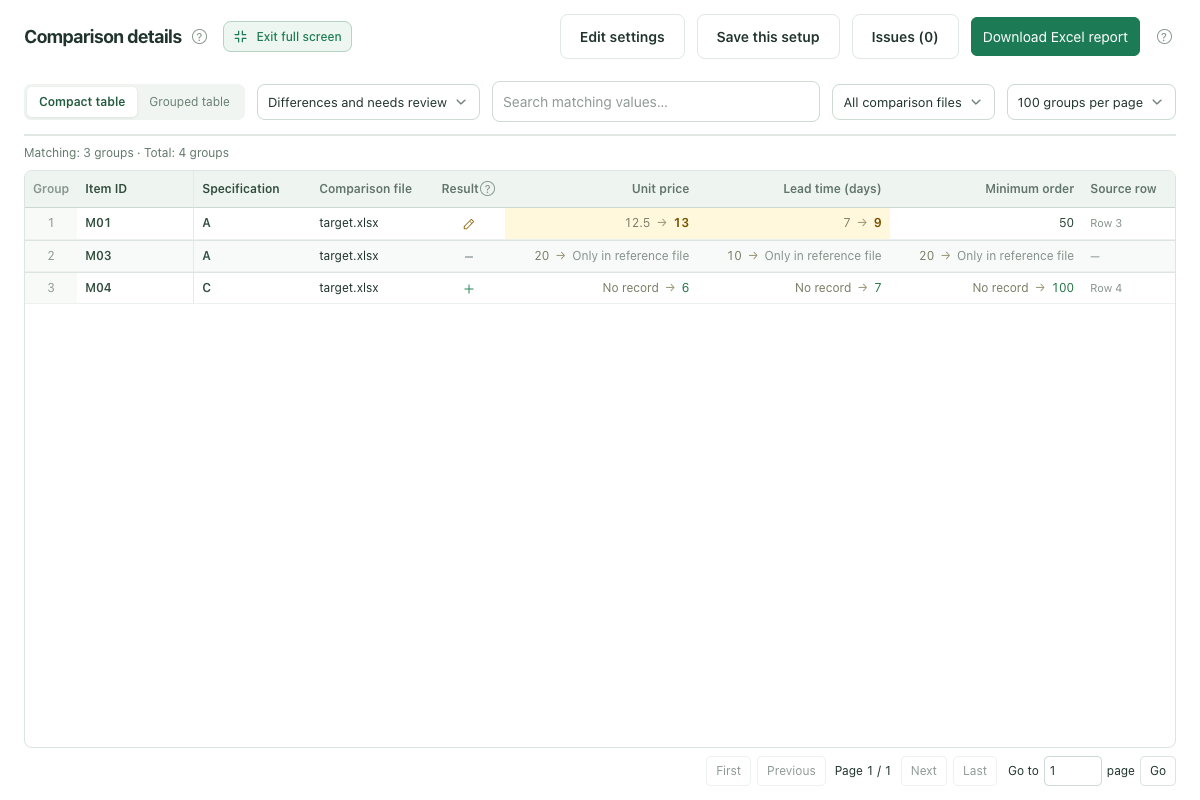
Click Compare files. M01 changes from 12.5 to 13 per unit and from 7 to 9 days, while its minimum order stays at 50. All three columns are compared, so a changed minimum order in your own quote will also be flagged. M03 appears only in the reference and M04 only in the update. Confirm the quote scope, then download the full report.
Expected results
Match rows by: Item ID + Specification. Columns to compare: Unit price, Lead time (days), Minimum order.
| Record | Result | What changed |
|---|---|---|
| M01 + A | Changed | Unit price: 12.5 to 13; lead time: 7 to 9 days; minimum order is still 50. |
| M02 + B | Same | Unit price is 8, lead time is 5 days, and minimum order is 100. |
| M03 + A | Only in reference file | This quote appears in the reference file, but not in the updated quote. |
| M04 + C | Only in comparison file | The updated quote includes item M04 with specification C. |
 View full-size screenshot ↗
Before using your own files
- A quote missing from the update means it is absent from this file; it does not prove the supplier discontinued the item. Check the validity period, quote scope, and any separate attachments. An added quote is new relative to the selected reference.
- For multiple suppliers, you can add Supplier ID as a third matching column. Tiered pricing also depends on the quantity range; both files must use the same level of detail.
- Only saved cell values are compared. If a formula has no saved result, calculate and save the workbook in Excel first.
- Comparison files stay on your device and are not modified. Leaving the workspace clears the current files and results, so download your report first.
Limits: 2–5 .xlsx / .xls files, with both formats allowed in one comparison. Use standard, unencrypted Excel 97–2003 tables for .xls. Limits are 10 MiB per file, 30 MiB total, 10,000 rows and 50 columns per sheet, and 1 million populated cells across all files. Reports are always exported as .xlsx. Refreshing, closing the page, or leaving the workspace clears the current files.
Continue with your files
Read the full guide and comparison rules · Learn how files and results are handled
Keep reading
Download sample files, follow the steps, and apply the same approach to your own records.