Match Excel rows using multiple columns
An order with two products can appear on two rows with the same Order ID. To match each line item, you also need its SKU. In this fictional example, Order ID and SKU together identify each item, even when the rows move. You can then check Quantity and Amount for that item. All amounts are in USD; keep the same currency in your own files because RowKite does not convert currencies.
Download the sample files
These sample files use fictional records and contain the rows shown below. Try them first, then use the same approach with your own files.
What is in the sample files
Reference file
| Order ID | SKU | Quantity | Amount |
|---|---|---|---|
| SO001 | P01 | 2 | 20 |
| SO001 | P02 | 1 | 15 |
| SO002 | P01 | 3 | 30 |
Comparison file
| Order ID | SKU | Quantity | Amount |
|---|---|---|---|
| SO001 | P02 | 2 | 30 |
| SO002 | P01 | 3 | 30 |
| SO001 | P01 | 2 | 20 |
Follow these steps
Check what each row represents
Each row here is an order line item. SO001 contains P01 and P02, so Order ID is not unique. Both files need to represent records at the same level of detail.
Choose the files and Line items sheet
Add baseline.xlsx as the Reference file and target.xlsx under Files to compare. Select Line items in both files. The first 10 rows are available in the source preview.
Select two matching columns
Under Match rows by, select both Order ID and SKU. Both values must match to identify the same record. The matching key check scans all data rows, not just the preview.
Compare Quantity and Amount
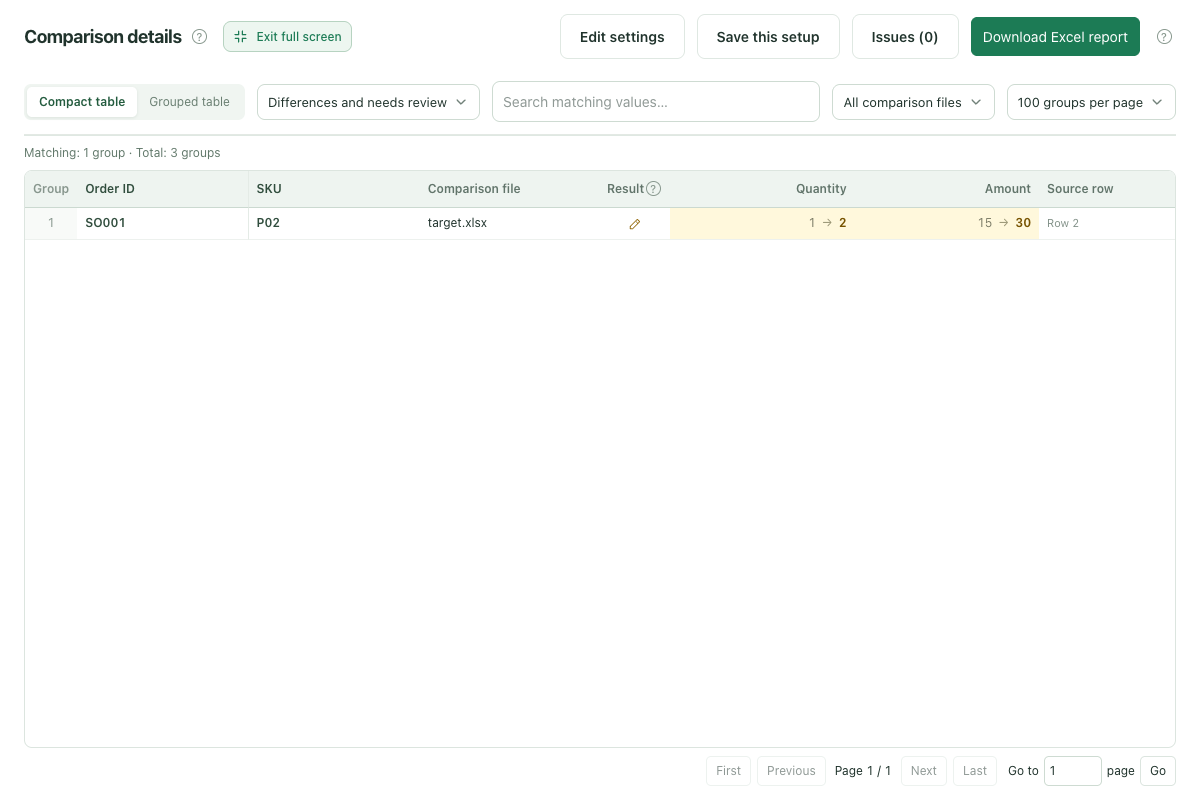
Under Columns to compare, select Quantity and Amount. Keep Raw values, then click Compare files. The P02 line in SO001 changed; the other two line items stayed the same.
Resolve any remaining duplicate combinations
If the same order and SKU still appear on multiple rows in your data, add a line item ID or another stable column. You can use up to three matching columns. Review the issues and correct the source data if combinations still repeat; RowKite does not pick an arbitrary first row.
Expected results
Match rows by: Order ID + SKU. Columns to compare: Quantity, Amount.
| Record | Result | What changed |
|---|---|---|
| SO001 + P01 | Same | Quantity is 2 and Amount is 20. A different row position does not affect matching. |
| SO001 + P02 | Changed | Quantity changed from 1 to 2; Amount changed from 15 to 30. |
| SO002 + P01 | Same | Quantity is 3 and Amount is 30. |
 View full-size screenshot ↗
Before using your own files
- This combination is unique in the example. Check the level of detail in your own files before choosing the same columns.
- An order and SKU can still repeat when items ship in batches, have split deliveries, or contain duplicate rows. Add a stable line item ID as a third matching column, or prepare both exports at a consistent level of detail. RowKite does not combine quantities or amounts automatically.
- A column cannot be used for both matching and comparison. To check whether a value changed, match records using other stable columns.
- Blank or duplicate matching values need review. Update the matching columns and check again before interpreting the differences.
Limits: 2–5 .xlsx / .xls files, with both formats allowed in one comparison. Use standard, unencrypted Excel 97–2003 tables for .xls. Limits are 10 MiB per file, 30 MiB total, 10,000 rows and 50 columns per sheet, and 1 million populated cells across all files. Reports are always exported as .xlsx. Refreshing, closing the page, or leaving the workspace clears the current files.
Continue with your files
Read the full guide and comparison rules · Learn how files and results are handled
Keep reading
Download sample files, follow the steps, and apply the same approach to your own records.