Choose a main sheet and a reference sheet, from separate files or two worksheets in the same file.
Match original rows, or group and summarize first. Set 1–3 match conditions. Choose ordered allocation when each reference should be used only once.
Append columns or customize the output. Download results and review any issues in the Pending sheet.
Match Excel sheets by ID and add columns
Add columns by matching records here. To stack rows into one sheet, use Merge Excel files →
Preparing the tool…
How to merge two Excel files by matching columns
Steps · 1 of 7
Add tracking numbers to five order rows
These fictional files are the same ones loaded by Try sample files above. Match their Order ID columns to add tracking numbers while keeping all five main rows.
- Matching method
- Unique match
- Match columns
- Order ID ↔ Order ID
- Column to add
- Tracking number
- Output format
- Append columns
| Order ID | Amount |
|---|---|
| A100 | 100 |
| A200 | 200 |
| A300 | 300 |
| (blank) | 400 |
| A500 | 500 |
Add tracking numbers to five order rows
These fictional files are the same ones loaded by Try sample files above. Match their Order ID columns to add tracking numbers while keeping all five main rows.
- Matching method
- Unique match
- Match columns
- Order ID ↔ Order ID
- Column to add
- Tracking number
- Output format
- Append columns
| Order ID | Tracking number |
|---|---|
| A100 | 00123 |
| A200 | T200 |
| A200 | T201 |
| A500 | (blank) |
| A400 | T400 |
| (blank) | T600 |
Add tracking numbers to five order rows
| Order ID | Amount | Tracking number | Match status |
|---|---|---|---|
| A100 | 100 | 00123 | Matched |
| A200 | 200 | — | Multiple candidates |
| A300 | 300 | — | No match |
| (blank) | 400 | — | Cannot check |
| A500 | 500 | — | Matched; reference value is blank |
A dash means an empty output cell; it is not written to the workbook. Text 00123 keeps its leading zeros. The status column below explains the web preview; the Results sheet contains only your configured output columns.
View the actual result screenshot
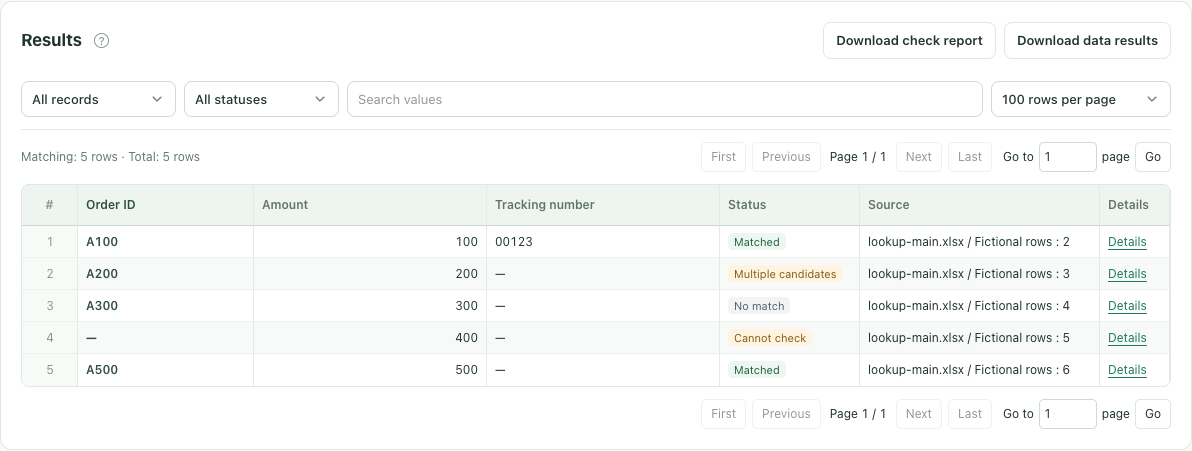 View full-size image (opens in a new tab) ↗
Results contains the configured output columns. Issues and source positions appear in Pending when needed. Data issues do not prevent downloads. Files use saved values without source formulas or formatting, and remain in this browser task.
- Output structure
- Append fields or choose custom output columns. Grouped matching can keep every detail row or output one row per group.
- Review results
- Download Results for your configured columns. When issues exist, a Pending sheet lists their reasons and source rows. Issues do not prevent downloading.
- Downloaded file
- A new .xlsx using saved values, without source formulas or formatting.
- Local storage
- Files and allocation state stay in this browser task. Saved setups store the configuration rules.
Match by ID to add columns; append to add rows
Use 1–3 matching columns to identify a record and return 1–8 reference columns under new names. Append mode keeps the main-sheet row count and does not overwrite existing columns. Ordered allocation and custom output are available separately; this example uses unique matching. To stack worksheets into one longer sheet, choose the merge tool instead.
A VLOOKUP alternative without writing formulas
Choose both worksheets, map the matching columns, select the columns to return, and check the match columns before processing. Files are processed locally. This is an exact-key lookup, not a complete SQL join engine: it does not expand one-to-many matches or provide every inner, right, or full join mode.
Review missing, repeated, and blank matching values
In Unique match mode, A200 has two reference candidates, so no tracking number is chosen. A300 is unmatched. The row with a blank ID cannot be checked. A500 does match a unique reference row, whose tracking number is blank. The text 00123 keeps its leading zeros. Review the statuses and source rows before using the new data.
What this tool supports
Use regular .xlsx and .xls tables with headers in the first row. Hidden rows are included; entirely blank rows are skipped. Saved formula results are used without recalculation. Output files are new workbooks and do not preserve source formulas or formatting.
.xlsx and .xls, with headers in the first row. Up to 10 MiB per file and 30 MiB in total. Up to 10,000 rows and 50 columns per input sheet, with 1 million input cells in total. Completed results remain downloadable with issues. Large exports are split into numbered files containing Results and, when needed, Pending.
Text “001”, text “1”, and numeric 1 are different values. Date text is not automatically converted to a date. Integers with an absolute value of at least 10¹⁵ in match columns are flagged for possible precision loss; lost digits cannot be recovered.
Results with issues can be downloaded. Undetermined values remain blank or retain error text; review the Pending sheet for details.
What happens if there are several candidates or no match?
Unique matching flags multiple candidates for review. Ordered allocation uses available references in source-row order, once per unique identifier within the task. Exhausted candidates and missing matches have distinct statuses. Every main row is kept; reference fields stay blank without an association.
Are my files uploaded or saved between visits?
Duplicate checking, combining sheets, and adding columns also run locally. Downloads are new files; source files are unchanged. These tools do not save cloud files or task history. Leaving will clear the current files and results. Make sure you have downloaded what you need.
Page visits and fixed tool actions may be collected when analytics is enabled. Spreadsheet contents and results are not attached. A download action means the browser generated the file and triggered a download; it does not confirm that the file was saved to disk.
Read the privacy details