Compare multiple Excel files against one reference
Check several versions of a product list against one approved copy. This five-file example uses A as the reference for B, C, D, and E. Match by SKU to check stock quantities and unit prices, even when rows move. Each comparison keeps its own results, so you can see which file changed each product. All sample data is fictional.
Download the sample files
These sample files use fictional records and contain the rows shown below. Try them first, then use the same approach with your own files.
What is in the sample files
Reference file
| SKU | Stock quantity | Unit price |
|---|---|---|
| SKU001 | 100 | 12.5 |
| SKU002 | 200 | 8 |
| SKU003 | 80 | 30 |
Comparison file B
| SKU | Stock quantity | Unit price |
|---|---|---|
| SKU003 | 80 | 30 |
| SKU001 | 120 | 13 |
| SKU002 | 200 | 8 |
File C
| SKU | Stock quantity | Unit price |
|---|---|---|
| SKU002 | 180 | 8 |
| SKU001 | 100 | 12.8 |
| SKU003 | 80 | 30 |
File D
| SKU | Stock quantity | Unit price |
|---|---|---|
| SKU001 | 100 | 12.5 |
| SKU002 | 200 | 8 |
| SKU004 | 60 | 9 |
File E
| SKU | Stock quantity | Unit price |
|---|---|---|
| SKU003 | 80 | 30 |
| SKU002 | 200 | 8 |
| SKU001 | 100 | 12.5 |
Follow these steps
Download all five sample files
baseline.xlsx is reference A; target.xlsx is B; target-c.xlsx, target-d.xlsx, and target-e.xlsx are C, D, and E. Each file has one row per SKU. For your own files, use the same stock units, currency, and tax basis for prices.
Add one reference and four comparison files
Open the workspace. Add A as the Reference file and B, C, D, and E under Files to compare. Select Products in every file. RowKite supports one reference plus up to four comparison files; A stays the reference throughout this run.
Match by SKU and compare two columns
Select SKU under Match rows by, then Stock quantity and Unit price under Columns to compare. Identical headers map by name. Keep Raw values for these numeric samples. Stock quantity belongs in the comparison columns so a quantity change does not change the matching key.
Review each file against A
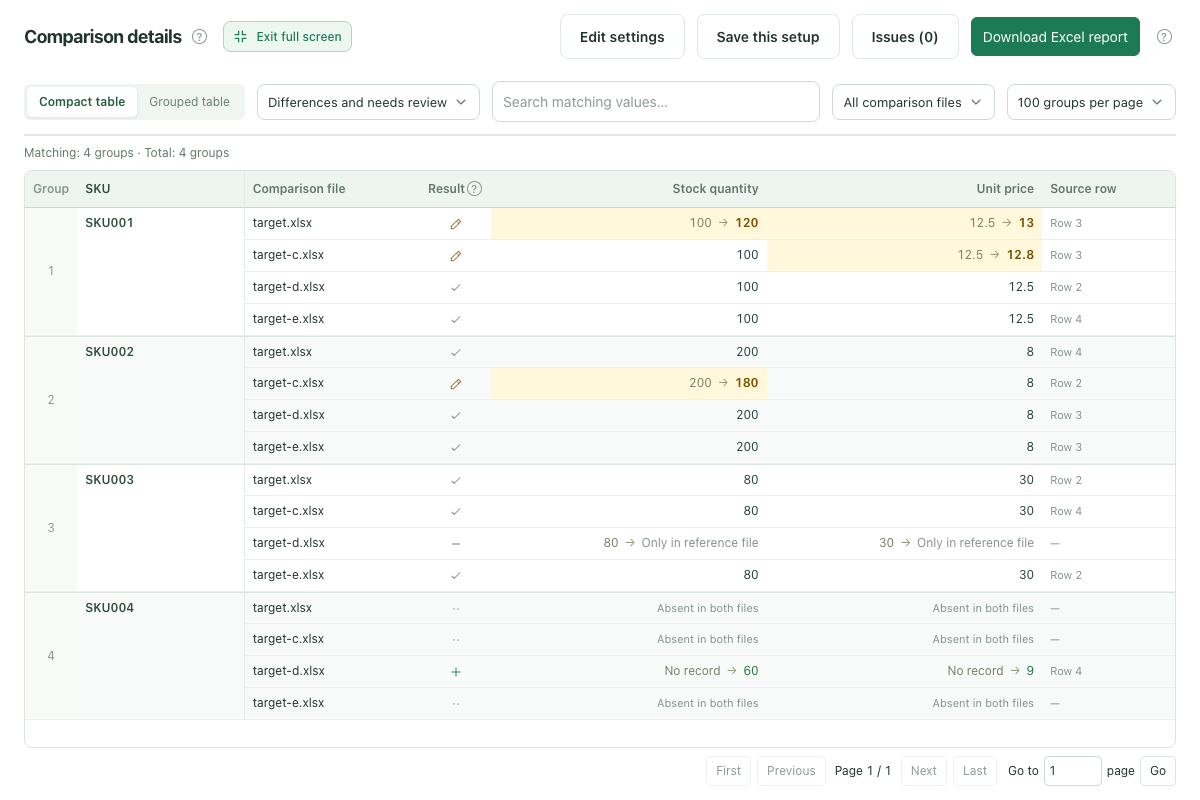
Click Compare files. B changes SKU001 stock and price. C changes the SKU001 price and SKU002 stock. D is missing SKU003 and adds SKU004. All three rows in E match A. Select All records to include unchanged rows, and read every result relative to A.
Download the complete report
Download Excel report and use the comparison file identity and source row references to check each difference. The report includes every target and the full results, regardless of the selected filter or page.
Expected results
Match rows by: SKU. Columns to compare: Stock quantity, Unit price.
| Comparison file | Record | Result | What changed |
|---|---|---|---|
| Comparison file B | SKU001 | B: Changed | Against A: stock quantity 100 to 120; unit price 12.5 to 13. |
| Comparison file B | SKU002 | B: Same | Stock quantity 200 and unit price 8 match A. |
| Comparison file B | SKU003 | B: Same | Stock quantity 80 and unit price 30 match A despite the new row position. |
| File C | SKU001 | C: Changed | Against A: unit price 12.5 to 12.8; stock quantity stays at 100. |
| File C | SKU002 | C: Changed | Against A: stock quantity 200 to 180; unit price stays at 8. |
| File C | SKU003 | C: Same | Stock quantity 80 and unit price 30 match A. |
| File D | SKU001 | D: Same | Stock quantity 100 and unit price 12.5 match A. |
| File D | SKU002 | D: Same | Stock quantity 200 and unit price 8 match A. |
| File D | SKU003 | D: Only in reference | SKU003 exists in A but has no row in D. |
| File D | SKU004 | D: Only in comparison file | D has SKU004 with stock quantity 60 and unit price 9; A has no such row. |
| File E | SKU001 | E: Same | Stock quantity 100 and unit price 12.5 match A. |
| File E | SKU002 | E: Same | Stock quantity 200 and unit price 8 match A. |
| File E | SKU003 | E: Same | Stock quantity 80 and unit price 30 match A. |
 View full-size screenshot ↗
Read four separate comparisons against A
The run checks A against B, A against C, A against D, and A against E. A stays the reference for every check. To compare B with C directly, start another run with one of those files as the reference.
B changes the stock quantity and unit price for SKU001. C changes the price for SKU001 and the stock quantity for SKU002. D adds SKU004 and is missing SKU003. All three products in E match A.
Count comparison results separately from unique products
The expected-results table lists 13 outcomes across the four comparisons: three changed, eight unchanged, one added, and one missing. SKU001 changes in both B and C, so it contributes two changed results while still being one product.
SKU004 appears only in D. Both A and B lack this product, as do A and C, and A and E. Those empty pairs are excluded from the table above. The complete Excel report also includes reference rows and entries for records absent from both files, so its row count is different from this table.
Choose comparison, row merging, or a lookup
Use this comparison when several files describe the same records and you need to review their differences against one reference. Each file contributes one selected worksheet, with one row per matching key in this example.
Choose a different workflow when your output needs combined rows or extra columns. Comparing the files produces a report of differences and leaves the source workbooks unchanged.
- Append rows from several Excel files. Combine separate exports into one longer worksheet, map their columns, and keep source references.
- Match Excel sheets and add columns. Return prices, names, or other fields from a reference sheet while keeping every main-sheet row.
Before using your own files
- Choose the reference direction before comparing. Added, missing, and changed labels are always relative to that file.
- For your own files, check that the matching columns identify one record. If a SKU repeats by warehouse or another detail, include that column in the key and review repeated matching values in the issues list.
- Use the same business scope, stock units, currency, and tax basis across files. Standard .xlsx and .xls formulas are read from their saved results.
- Download the complete report before leaving the workspace. Comparison files and results stay in the current browser task.
Limits: 2–5 .xlsx / .xls files, with both formats allowed in one comparison. Use standard, unencrypted Excel 97–2003 tables for .xls. Limits are 10 MiB per file, 30 MiB total, 10,000 rows and 50 columns per sheet, and 1 million populated cells across all files. Reports are always exported as .xlsx. Refreshing, closing the page, or leaving the workspace clears the current files.
Continue with your files
Read the full guide and comparison rules · Learn how files and results are handled
Keep reading
Download sample files, follow the steps, and apply the same approach to your own records.